
Leading ROI-focused Digital Agency.
Trusted by industry leaders, Top Brand Building Strategies
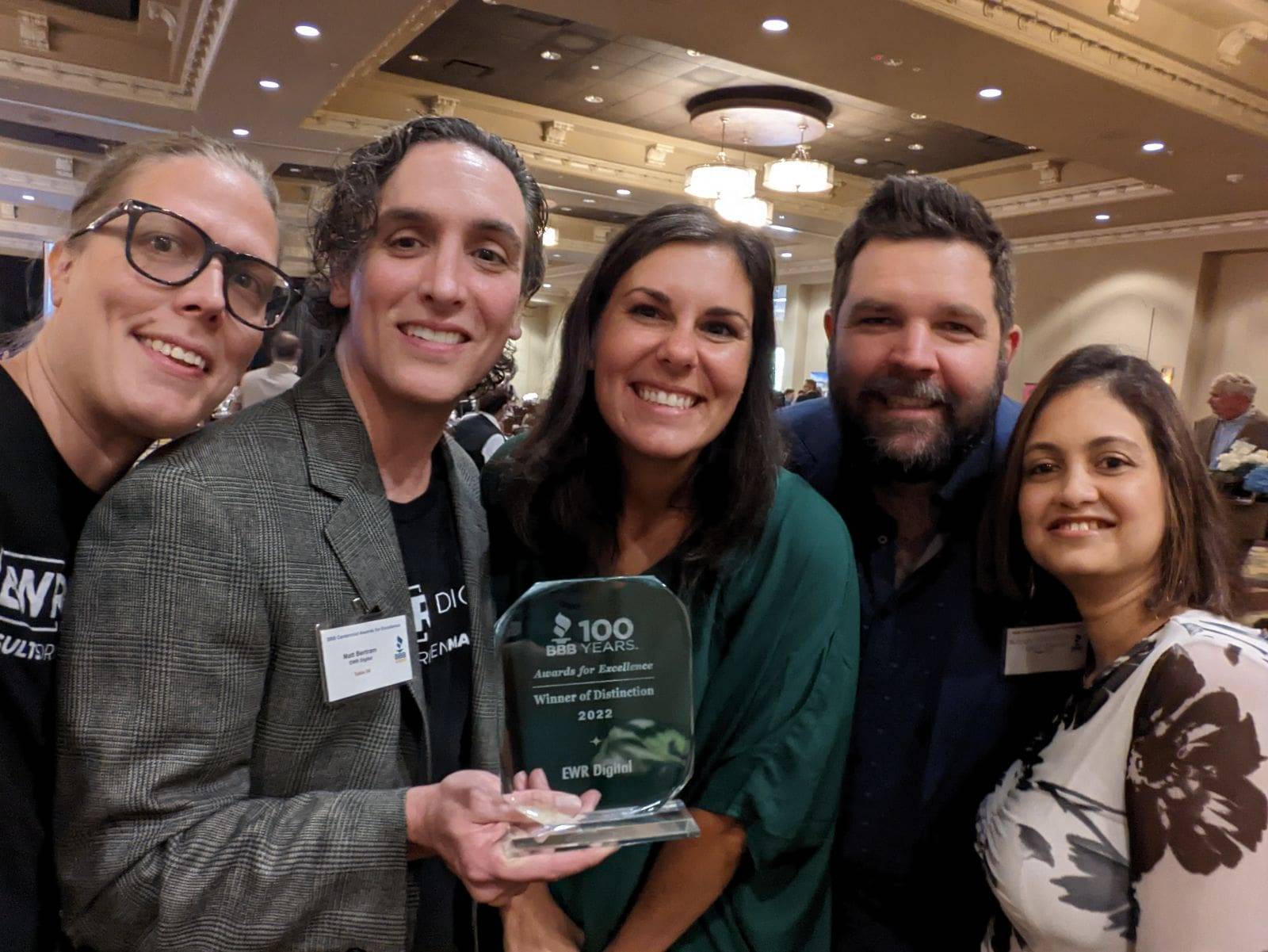
Award-Winning Agency




Digital Marketing Services
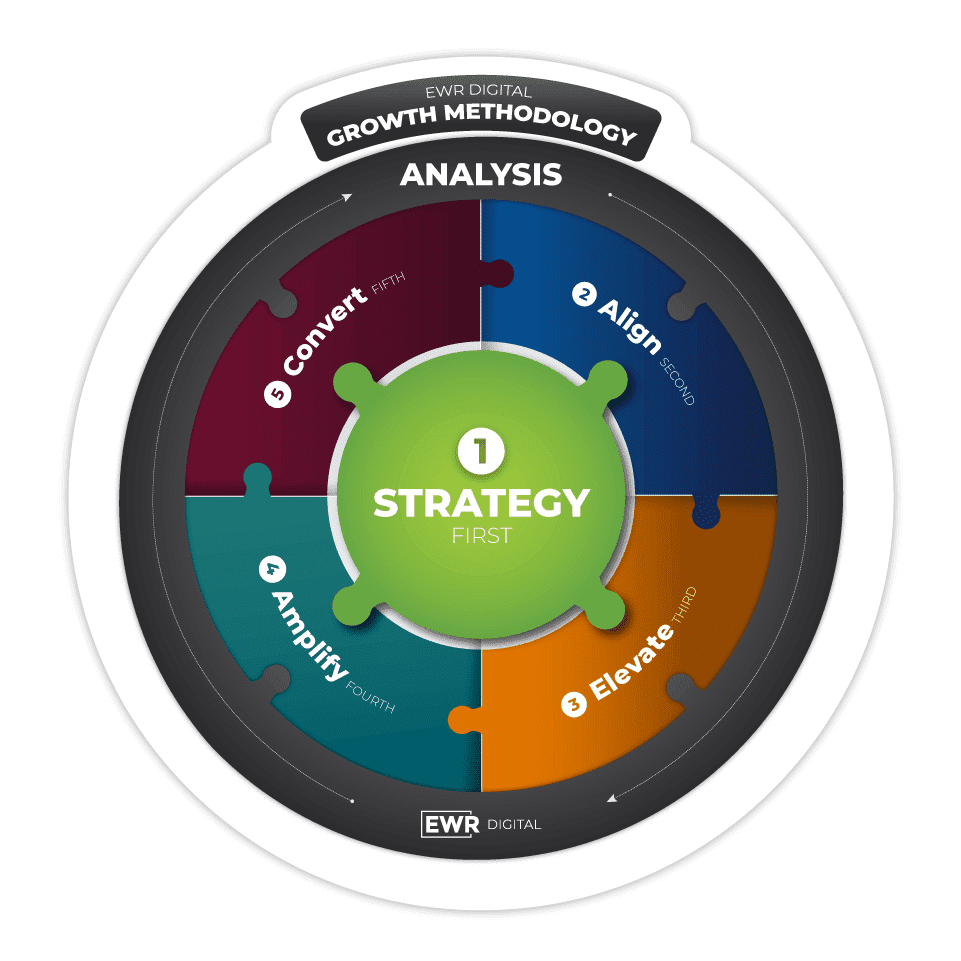
Proven Growth Methodology
Welcome to EWR Digital a premier Search Marketing Agency, where we specialize in delivering comprehensive and cutting-edge solutions to elevate your online presence. As a leading SEM company, we offer a range of services designed to boost your visibility and drive targeted traffic.
Thought Leadership at the Core
At the heart of everything we do lies a dedication to thought leadership. We don’t just follow trends; we set them. Through rigorous research, analysis, and experimentation, we stay ahead of the curve, uncovering insights and strategies that drive real results for our clients.
Discover unparalleled expertise in PPC management and strategic ads campaigns with our team. We’re not just about crafting campaigns; we’re masters at optimizing keywords to guarantee maximum impact for your brand visibility.
Seamlessly integrating SEM, SEO, and PR strategies, we’ll catapult your brand to the forefront of the industry in your ideal prospects mind!
Unlock new dimensions for your brand through the synergy of retargeting and social media advertising. With 25 years of experience in search engine marketing and web design & development, we’ve honed our skills in creating effective omni-channel search marketing strategies!
But what truly sets us apart? We don’t operate within a traditional “waterfall” environment where individuals work in isolation, merely completing assigned tasks and billing for services rendered. We are agile. We care about your success and focus on real accountabilty and driving real results.
Collaborating closely with clients, we craft creative content and storytelling campaigns that amplify their digital presence. Our mission is simple: deliver new leads, clients, and web results that align with your business goals. Partner with us for a holistic SEM approach that propels your business toward unprecedented success.
*If you are in search of dynamic public relations, brand storytelling, content strategy, thought leadership services, or engaging in creative account-based selling (cABS), we invite you to schedule a complimentary consultation with one of our strategists.


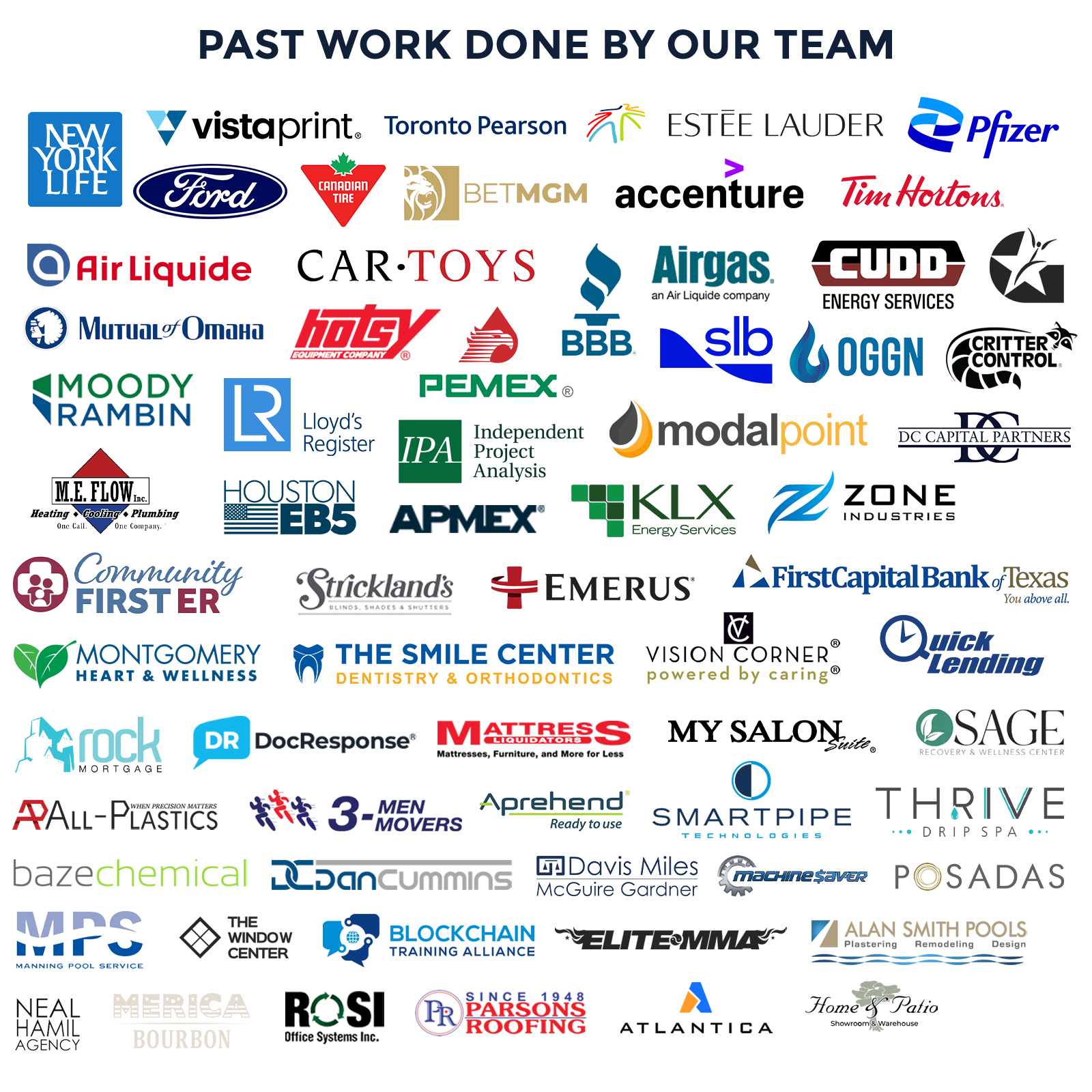
CLIENTS THAT HAVE TRUSTED US WITH THEIR MARKETING
Successful online marketing are the result of collaborative partnerships. By working together we'll help you become a market leader like some of the amazing partners over the years! Find out more "About US" and the brands we have worked with in the "Portfolio Section" of the website.






Client Testimonials
"Once we got to the 1st page of Google we had an influx of leads. This is going to be the best year we’ve had."
"They are incredible to work with. They really partner with you and help you find what your strategic vision is."
Kathleen Liles | Marketing Director @ Critter Control

EWR DIGITAL marketing agency
working with EWR Digital
As a nationally recognized full-service internet marketing agency that consistently thinks outside the box to deliver outsized results for our clients with digital marketing services such as Digital Strategy, Search Engine Marketing (SEM): SEO & PPC, Web Design, Branding, Video Production and more.
Who we help: Our ideal customer is the executive suite, CRO’s, and leadership in sales, marketing, IT at enterprise companies and brands across North America. Industrial, Oil and Gas, SaaS mainly, however we do help a number of service based industries as well. We do also help small and medium size business owners (SMB’s) along with funded startups that have the ablity to scale with Integrated SEM and SEO strategies.
What we do: We offer a strong data driven approach and solutions, to first strategize, then align, elevate, amplify, and then convert visitors to customers through our proven methodology and use of digital marketing services. We focus all phases of the customer journey: Awareness, Research, Consideration, Intent, Evaluation, Purchases, and Post-Purchases.
How do we do it: We look at data to figure out the best way to put the digital marketing strategy together like a puzzle. We use the methodology we created over the years to drive consistent results and achieve client goals. We have solid expereince with creating data drivin digital strategies, storytelling, and creating omni channel serach marketing campaigns that incorporate: SEO, Paid Media, and Video as well as other aspects of digital marketing.
Why US: We believe that all brands have something to offer and a story to tell. From the ethos of our company and for over 20 years ago our goal is to help over 1 million brands grow. We have be awarded and recognized numerous times for the success of our campaigns, branding and commitment to clients.
When should you start: We go through a client evalation process, but do work with brands at all stages of their development that are not reaching their goals. We are want to connect with believers in digital marketing first strategies that ready to take the next step to grow their enterprise!
Data-Driven Approach
One of the benefits of digital marketing is the ability to access and act upon critical data
Experienced Marketers
Since 1999 our team has leveraged digital marketing to help businesses gain an advantage in their market
Proven Methodology
Top rankings for target keywords and high multiples on ROI are results we’ve produced consistantly
Transparent Reporting
Our goal is to show you the data of how the campaign is performing, explain what it means and then provide next steps
Trusted Advisors
It can be challenging to know where to focus your marketing efforts, which is why we work with you to develop your marketing strategies
Our marketing experts have been published on




Digital Marketing Services
We offer end-to-end digital marketing services, from strategy and analytics to web creative and search engine optimization, to help transform your digital presence and make your marketing efforts effective!
We build top of the line websites with enterprise SEO in mind — rank higher right out of the gate.

Digital Strategy
A digital strategy is a comprehensive plan that outlines how an organization will leverage digital technologies and channels to achieve its specific business objectives and goals.
- Digital Strategy Consulting
- Marketing Audits
- Marketing Workshops
- Paid Consulting Sessions

SEO Services
SEO services are professional strategies and techniques employed to optimize a website's visibility in search engine results, ultimately enhancing its organic traffic and online presence.
- Onpage SEO
- Offpage SEO
- Technical SEO
- Local SEO

Web Design
Web design and development is the process of creating and arranging the visual elements, layout, and user interface of a website to ensure it is aesthetically appealing, user-friendly, and functional, with the goal of delivering a positive user experience and achieving the website's intended objectives.
- New Website Builds
- Full Website Redesigns
- CRO
- Web Support

Paid Search (PPC)
Paid search PPC management entails optimizing and overseeing pay-per-click campaigns to maximize effectiveness and return on investment through strategic keyword selection and bid management.
- Omni-Channel PPC Advertisting
- Google Local Ads
- Retargeting Campaigns
- Landing Pages
Analytics & Analysis
Web analytics involves tracking and analyzing data related to website or app performance, user behavior, and engagement to optimize online strategies and outcomes.
- Track Campaign Performance
- Understand Your Website’s Engagement
- Market & Competitor Insights
- Google Adwords Preformance & Analysis

Public Relations
Online PR involves managing a brand's image through digital channels, utilizing platforms like social media and news websites to shape public perception and build positive relationships.
- Podcast Pitching
- Social Media Marketing
- Press Releases
- Crisis Management
- Bylines
EWR DIGITAL marketing agency
What is “E-Marketing”

E-marketing, also known as digital marketing, is the process of using digital channels such as the internet, email, social media, search engines, and mobile devices to promote and market products or services to potential customers. (It was basically named after us!)
It involves a range of tactics such as Search Engine Marketing (SEM): search engine optimization (SEO) & pay-per-click (PPC) advertising, email marketing, social media marketing, content marketing, and more. E-marketing allows businesses to reach their target audience more effectively and efficiently, and it has become an essential component of many modern marketing strategies.
Back in the day when online presence was just beginning, everything on the internet had an “E” prefix, and that’s how our company came to be known as e-Webstylecom LLC / eWebResults when we started in 1999. Now we’re known as EWR Digital.
Core Services
Search
Paid
Web